Search...
2. Creating Your 3D Catalogue
Syncing Your Products
Easily sync tagged Shopify products to Imersian and manage product imports for 3D model creation.
Your store is always changing, new products, price updates, and stock changes. The Sync feature ensures Imersian always sees the latest version of your catalog. This eliminates manual data entry and ensures that when you add a new rug or sofa to Shopify, it appears in your Imersian dashboard instantly.
How to Sync
Note: The Initial Sync of your full catalogue is performed by the Imersian team as a complimentary service during your onboarding process.
If you haven't already, Contact us to schedule your free setup.
Follow the steps below for ongoing updates whenever you add new inventory to your store.
Prerequisites
Product must be Active (not Draft)
Dimensions are included (in variant title or product description)
Has at least one product image that follows our Image Guidelines
Step 1: Tag products that you would like to enable for the visualiser
In order to generate a 3D model of products you wish to enable visualisation for, we require a high quality image of your product. but before we proceed, we need to sync your product images into Imersian. Here's two ways of doing this.
Go to Your Products
From your Shopify admin, click Products → All products.
Tick the boxes next to all the products you want to enable the visualiser for.
Step 2. Add the Tag
Click More actions → Add tags.
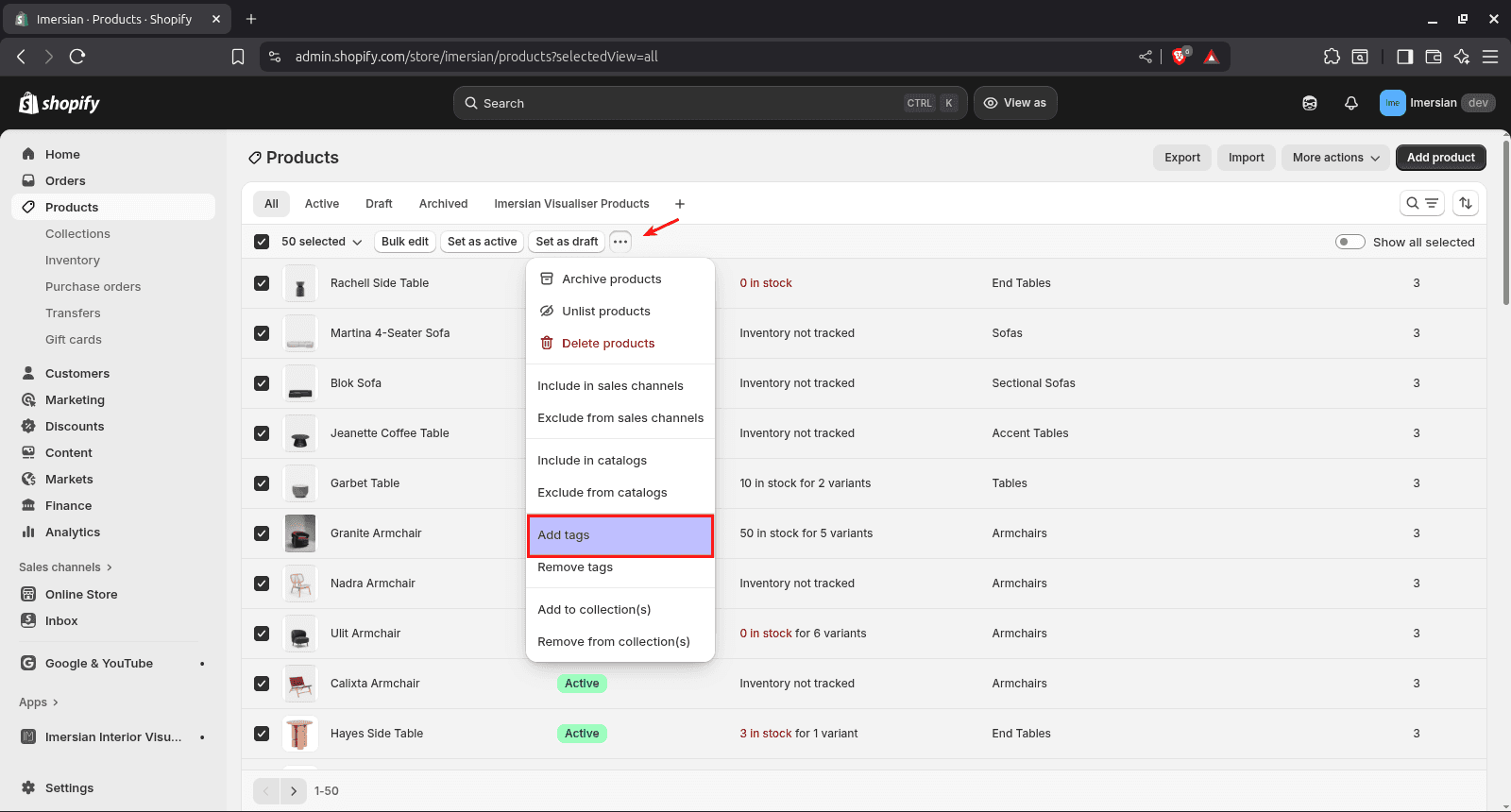
Type:
imersianvisualiserenabledHit Save
How to Skip a Product
If you have 1000s of SKUs and prefer to sync all products but exclude a few products. You can simply add imersianvisualiserskip in addition to the tag above.
Step 2. Sync your products to Imersian
Now that your tags are in place, it’s time to pull those products into Imersian.
In your Imersian dashboard, go to the Integration page.
Under the Tag & Sync, section, click on Sync products
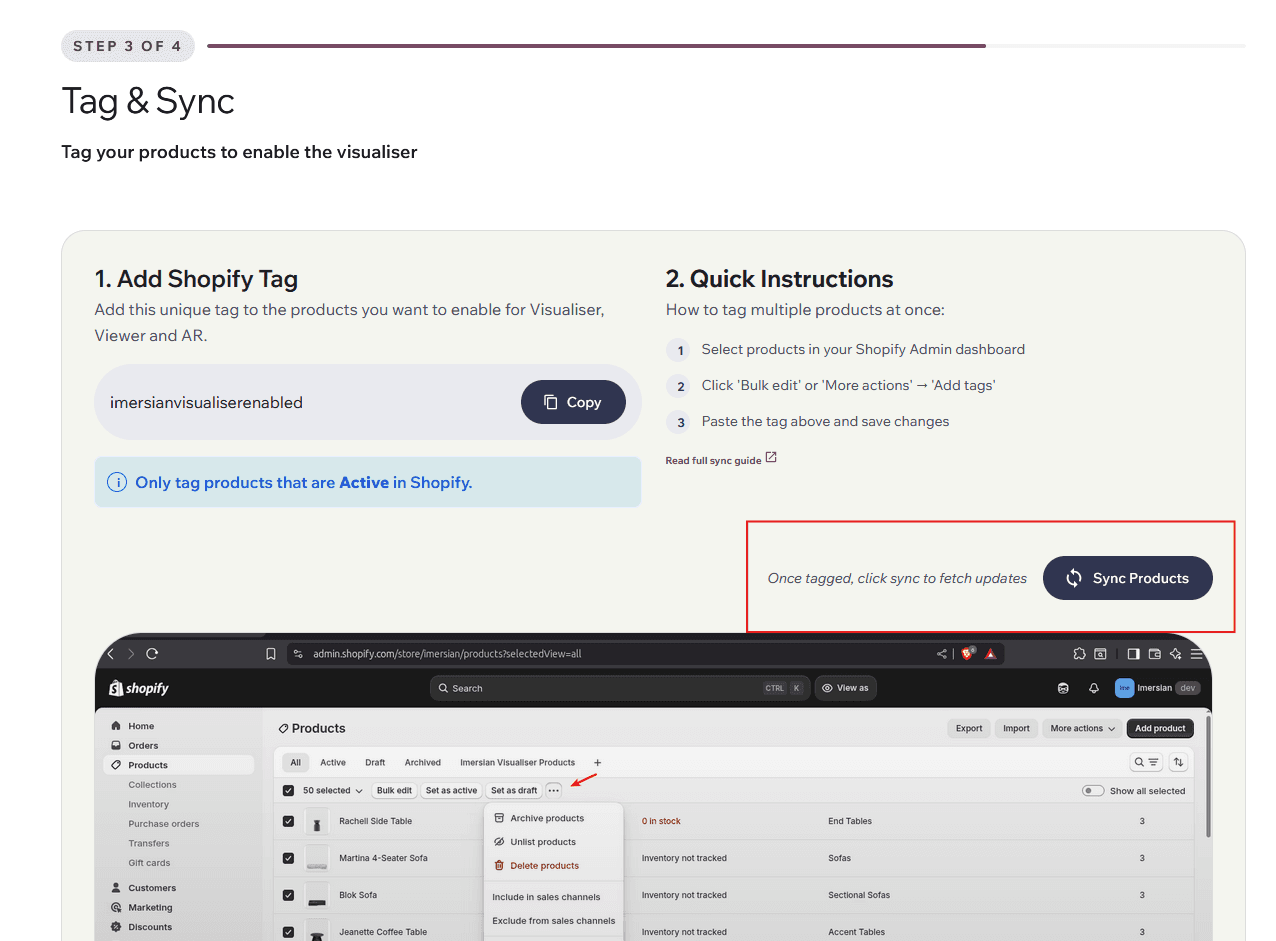
Once complete, open the My Products page. You’ll see your newly tagged products appear here.
If products have not appeared, please give it a few minutes and refresh the page. The sync time depends on how many active products are in your Shopify store (a larger batch of products might take a little longer).
You’ll see your newly tagged products appear here.
We can now proceed to the next step to generate 3D models for your products.
⚠️ If no valid product is tagged, the product won’t sync. Ensure the Product is ACTIVE on shopify