Search...
1. Setup & Connection
Connect Your Shopify Store to Imersian
Follow these steps to connect your Shopify store to the Imersian portal and sync your product catalogue for visualisation.
Before you can start transforming your catalog into 3D, Imersian needs permission to talk to your store. This one-time setup creates a secure bridge, allowing us to pull your product images and push back the high-quality 3D models that will delight your customers.
Steps to Configure
Install the Imersian App
Visit the Shopify App Store listing for Imersian Interior Visualiser.
Click Install and follow the prompts.
Access the app under Apps > Imersian in your Shopify Admin.
Connect Your Shopify Store
Log in to the Imersian portal. Don't have an account yet? Sign up here
Navigate to Integration.
Under the Shopify section, copy the provided snippet.
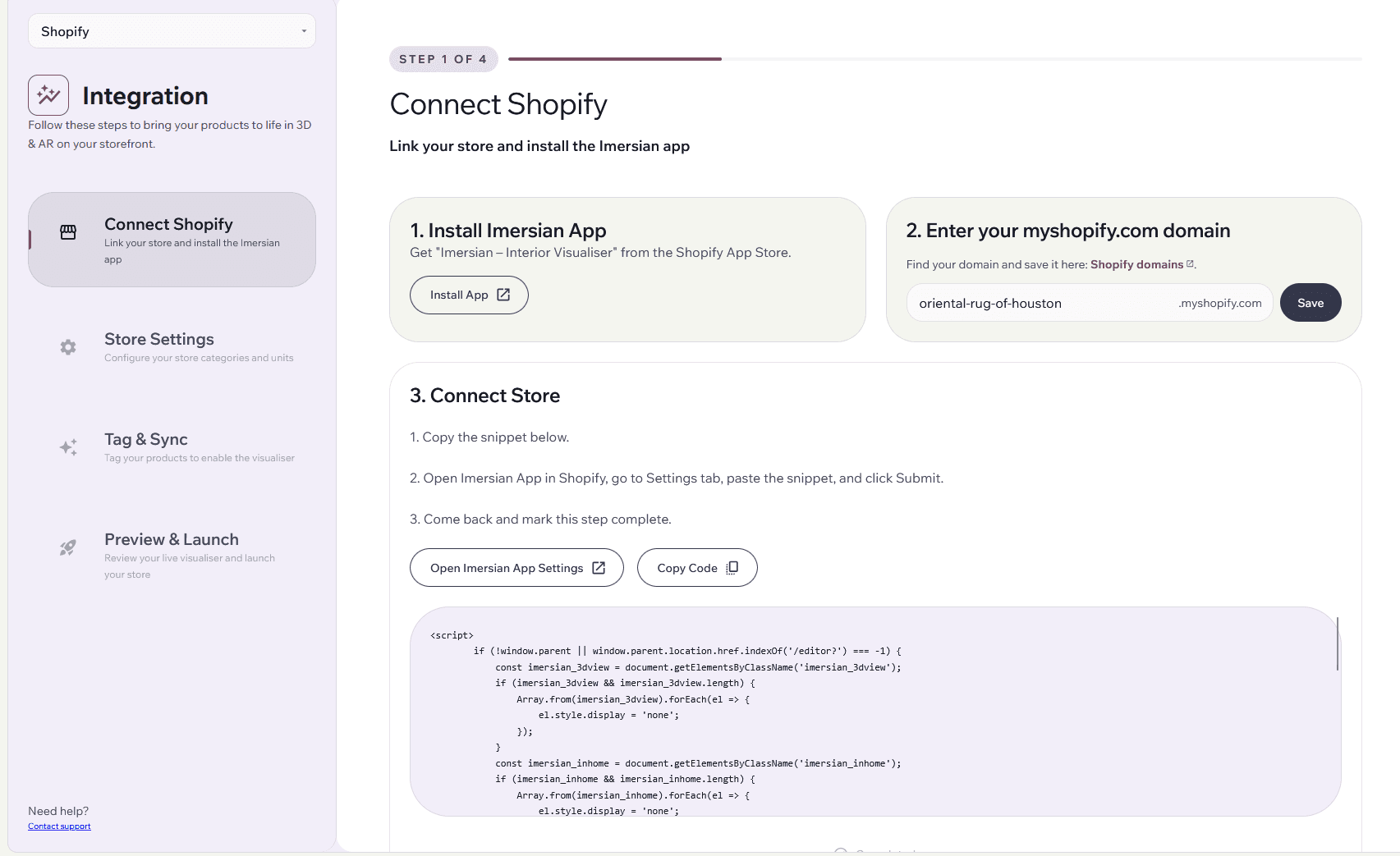
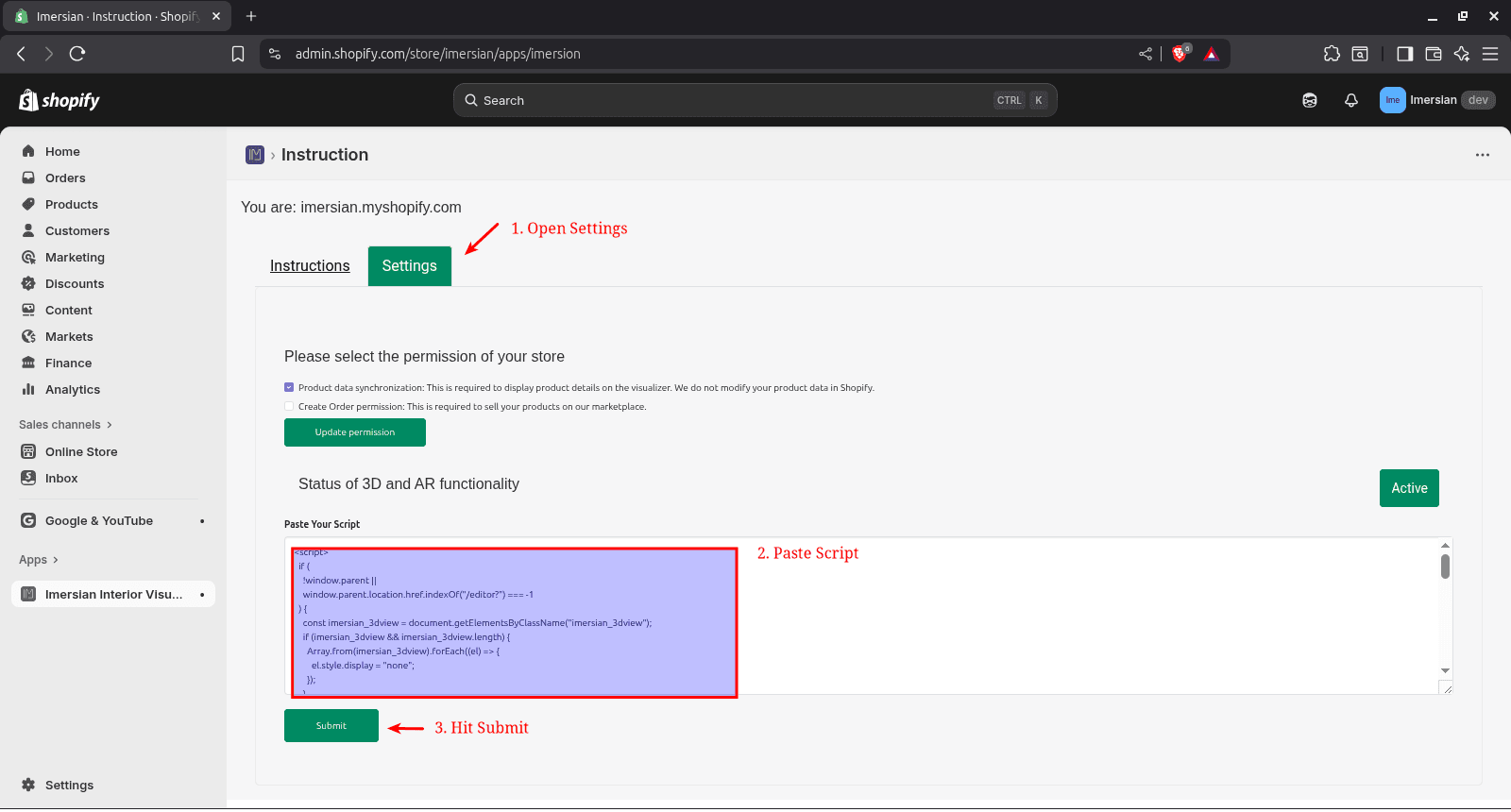
In Shopify, go to Apps > Imersian > Settings, paste the snippet, and click Submit.
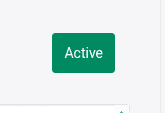
Refresh the page. the message 'Active' confirms your store is connected.
Complete the Configuration.
Navigate back to the Imersian Integration
Click on Next to proceed to the store settings
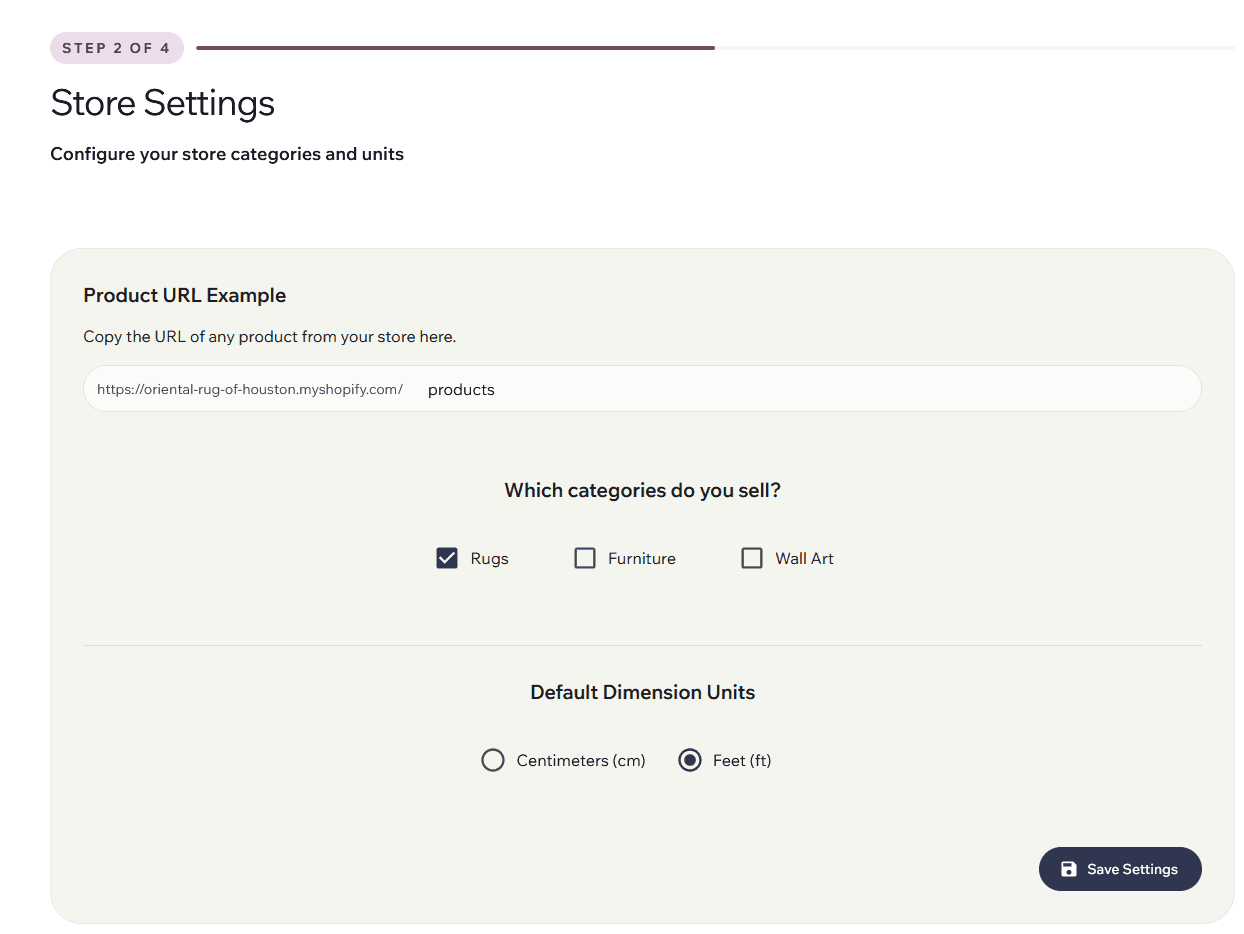
Insert your
Shopify Product URL
the Product Categories you wish to enable.
Measurement units (important for accurate dimensions)
With your Store connected, you can proceed to sync products, create 3D assets and set up your visualiser.